Windows 11 & GovWifi Troubleshooting Guide
Connect using a Windows device
General troubleshooting
Forget the network
If your device says "Can't connect to network", it may be trying to use an incorrect GovWifi username and password. You need to tell it to forget that GovWifi connection and try again.
-
Go to Settings, Network & internet, WiFi and select Manage known networks.
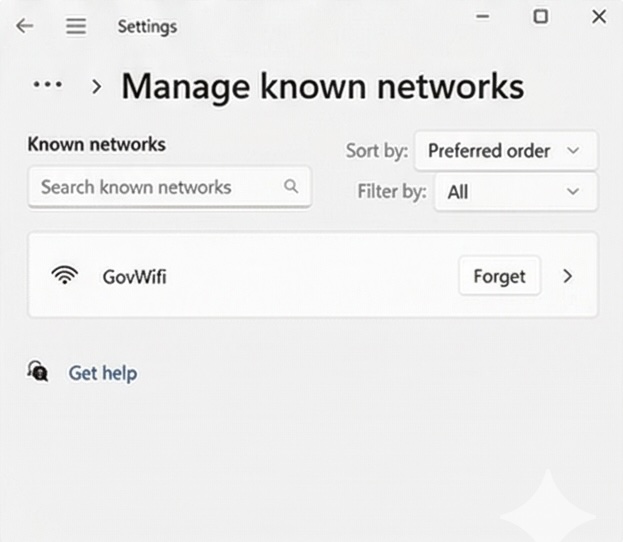
-
Select GovWifi.
-
Select Forget.
-
Try to connect again. Make sure you’re entering your username and password exactly as shown in your text or email.
Credential Guard
Windows 11 introduced several security enhancements that change how Enterprise Wi-Fi (802.1X) functions compared to Windows 10. If you or your users are receiving "Can't connect to this network" errors, follow the steps below.
The "Ghost Login" Issue (Credential Guard)
The Problem: You enter your GovWifi credentials, but Windows 11 immediately says "Can't connect," and no authentication attempt appears in the GovWifi Admin logs.
The Cause: Windows 11 (version 22H2 and later) enables Windows Defender Credential Guard by default. This security feature blocks "Legacy" authentication protocols like MS-CHAPv2 (which GovWifi uses for username/password login) to prevent credential theft.
The Fix for IT Admins: To allow GovWifi to function with username/password credentials, you must either:
- Option A (Recommended):
Deploy a Certificate-Based Authentication (CBA) profile via Intune or GPO. This bypasses the need for passwords and is compatible with Credential Guard.
- Option B:
Disable Credential Guard for specific mobile users (Note: This reduces device security and should be evaluated against the department's risk policy).
Updated Manual Setup (UI Drift)
The Problem: The Windows 10 "Network and Sharing Center" has changed in Windows 11.
The Fix:
- Open Settings > Network & internet > Wi-Fi.
- Select Manage known networks > Add network.
- Network name: GovWifi
- Security type: WPA2-Enterprise AES
- EAP method: Protected EAP (PEAP)
- Authentication Method: Secured password (EAP-MSCHAP v2)
- Once saved, click the network to enter your GovWifi Username and Password.
"Can't Connect" after Certificate Rotations
The Problem: Following a GovWifi maintenance window, Windows 11 devices fail to reconnect.
The Cause: Windows 11 is stricter regarding Root Certificate Trust. If the device does not explicitly trust the new RADIUS server certificate (e.g., the DigiCert Global Root G2), it will drop the connection without a prompt.
The Fix:
- Users: Select "Forget" on the GovWifi network and sign in again. When prompted "Continue connecting?", verify the thumbprint and click Connect.
- Admins: Ensure your MDM (Intune/MobileIron) has been updated with the latest GovWifi RADIUS server certificates to maintain "Silent" authentication.